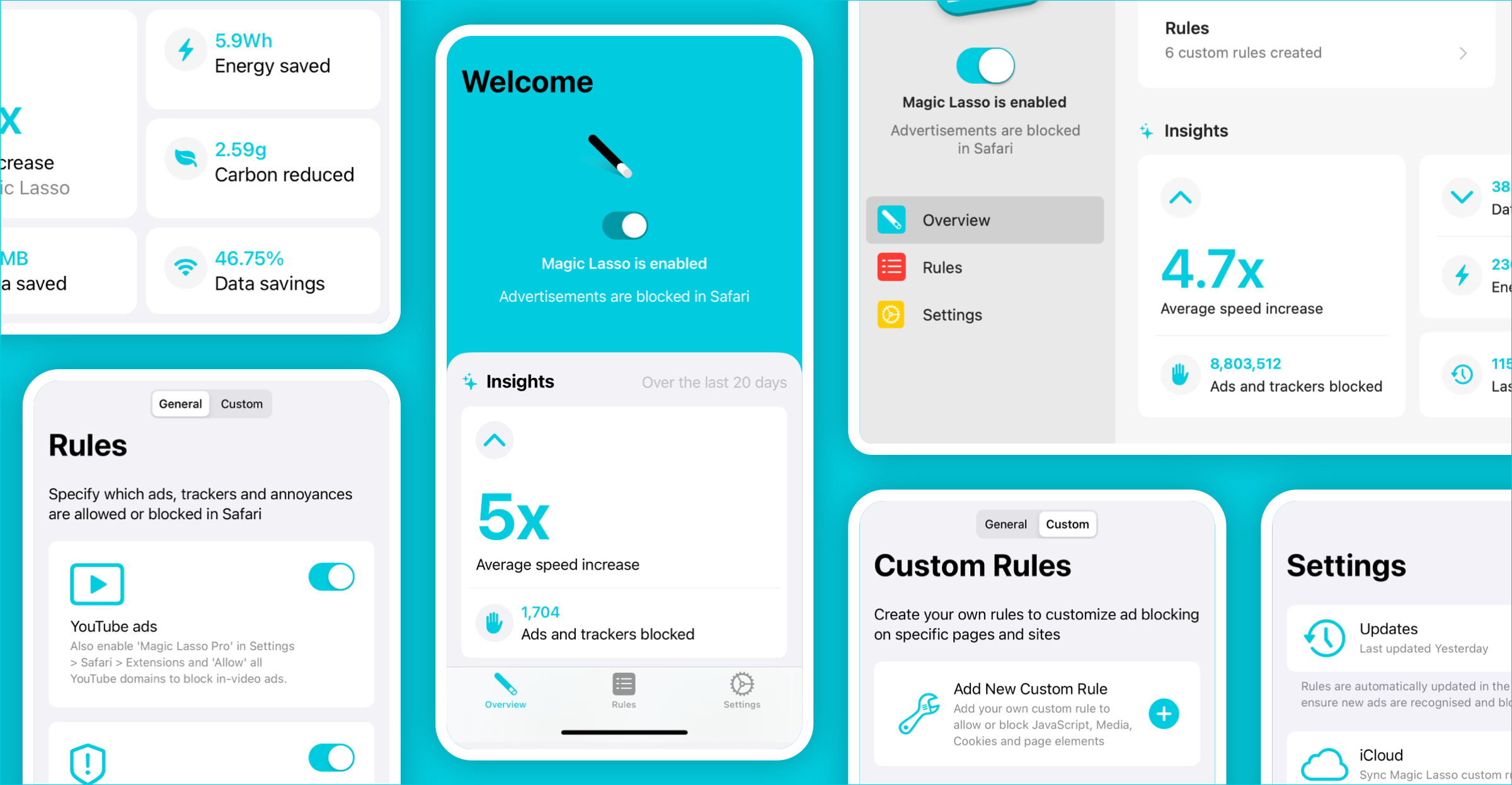




Magic Lasso Adblock v5.6 makes it easier than ever to customize ad blocking directly in Safari.
The new Magic Lasso Adblock web extension brings the most frequently used ad blocking settings into Safari, complementing the app’s existing Custom Rules features. With just a few taps, you can control what gets blocked, customize individual websites, remove distracting page elements and see the difference ad blocking makes.
Use the new All Sites tab to manage settings across the web, or the Current Site tab to customize ad blocking for a specific website. You can even temporarily disable ad blocking, block individual page elements and quickly jump between your configured sites.
Here’s a look at what’s new in Magic Lasso Adblock v5.6 and it’s powerful ad blocking customization features.
On this page
- Specify which ads, trackers and annoyances are blocked
- Disable ad blocking on a site
- Block media, cookies and JavaScript on a site
- Block page elements with Tap to Block
- Jump between your Configured Sites
- View Insights to see the difference ad blocking makes
- Create Custom Rules for App Ad Blocking
Specify which ads, trackers and annoyances are blocked
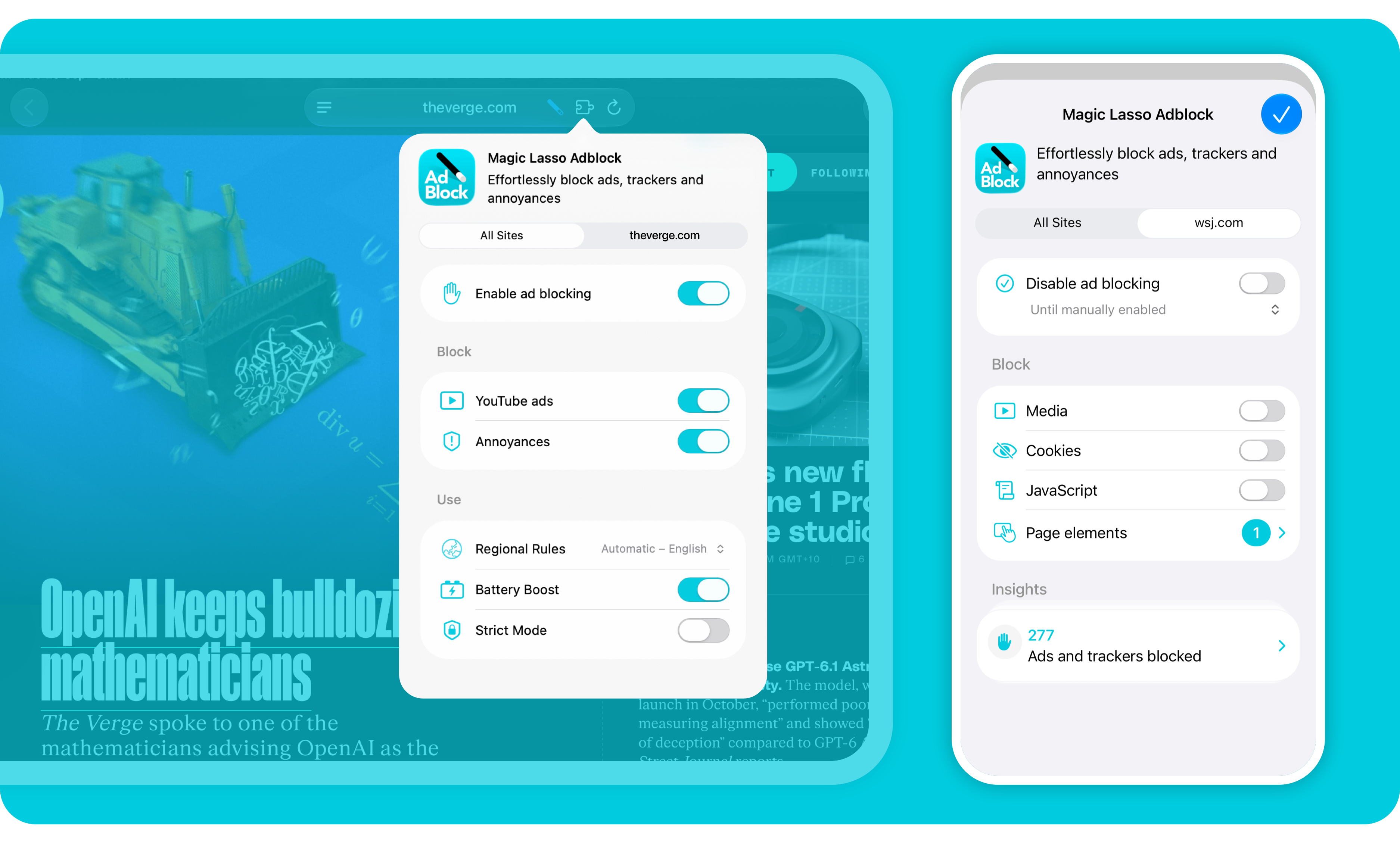
The new Magic Lasso Adblock web extension is easy to access directly from Safari:
- On a Mac – Tap the Magic Lasso toolbar button next to the Safari address bar
- On an iPhone – Tap the Page menu to the left of the Safari address bar, then tap Magic Lasso Adblock
- On an iPad – Tap the Jigsaw icon to the right of the Safari address bar, then tap Magic Lasso Adblock
Once opened, the web extension has two main tabs:
- All Sites – settings that apply to all websites
- Current Site – settings that apply only to the website you are currently viewing
From All Sites, you can quickly enable or disable key Magic Lasso features, including ad blocking, YouTube ad blocking, Annoyance blocking, Regional Ad Blocking, Battery Boost and Strict Mode.
All of these settings can be changed without opening the Magic Lasso app. After changing a setting, simply reload the page in Safari for the change to take effect.
Disable ad blocking on a site
One of the most common reasons to customise an ad blocker is to disable it on a particular website. Sometimes ad blocking can interfere with a site’s functionality or prevent certain features from working correctly.
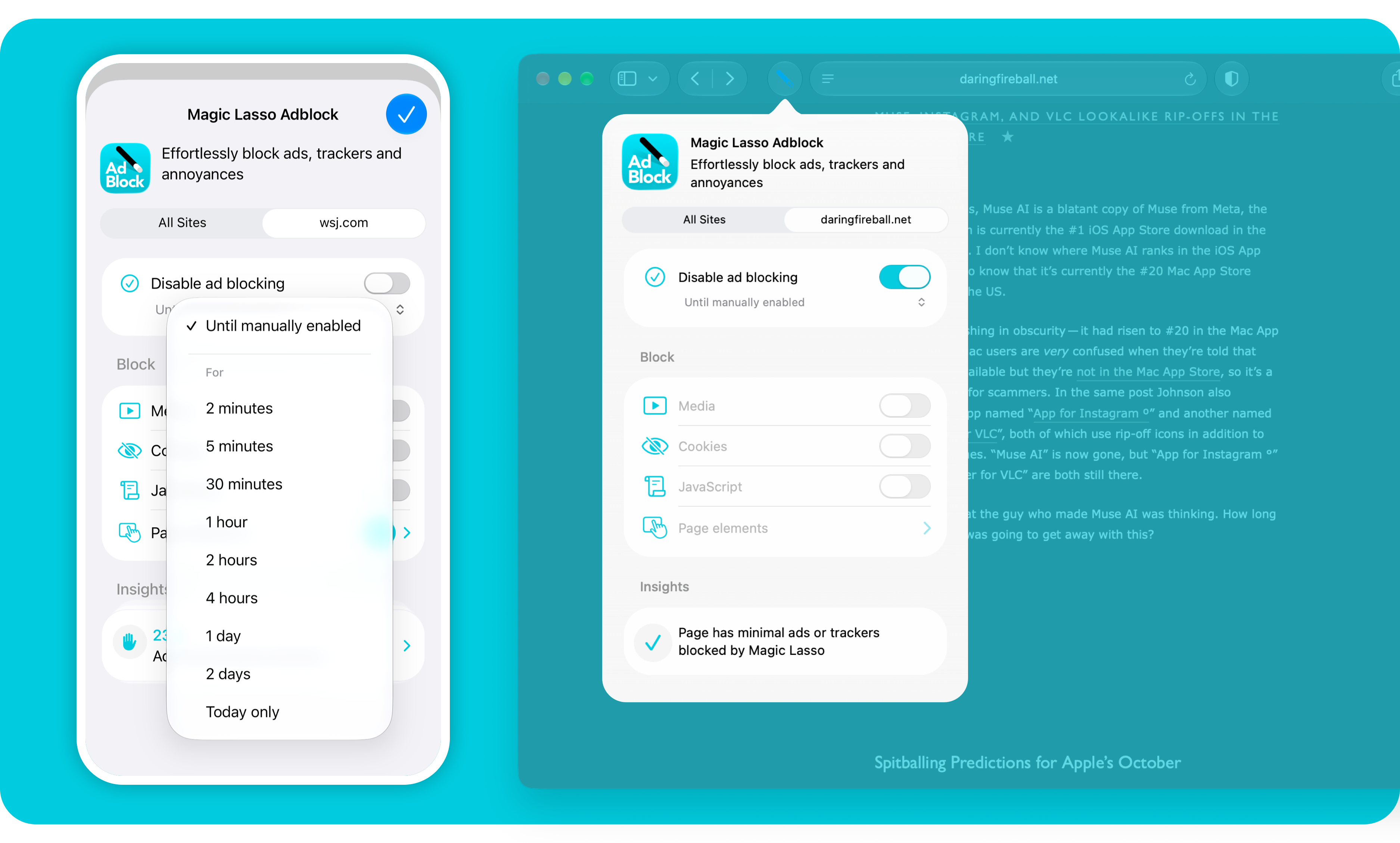
Magic Lasso Adblock v5.6 makes this easy. Open the web extension to the Current Site tab, then tap Disable ad blocking.
Ad blocking will be disabled across the site, while remaining active everywhere else.
You can also disable ad blocking temporarily. Instead of turning off the toggle, select a duration from the time dropdown. Magic Lasso will automatically re-enable ad blocking when that time period expires.
For convenience, websites with Disable ad blocking active will also be disabled in App Ad Blocking.
Block media, cookies and JavaScript on a site
The Current Site tab also gives you additional controls for the website you are viewing. In this tab, you can block:
- Media – Prevent audio and video content from loading or playing, helping reduce distractions and animated content
- Cookies – Block cookies to reduce personalisation, privacy prompts and some forms of tracking
- JavaScript – Block external JavaScript to simplify complex websites, reduce unnecessary interactivity and bypass some paywall prompts
These settings apply to all pages on the configured site.
Your configured website settings also sync seamlessly between your Apple devices using iCloud, keeping your ad blocking configuration consistent across your devices.
Block page elements with Tap to Block
The improved Tap to Block makes it easier to remove unwanted elements from any webpage.
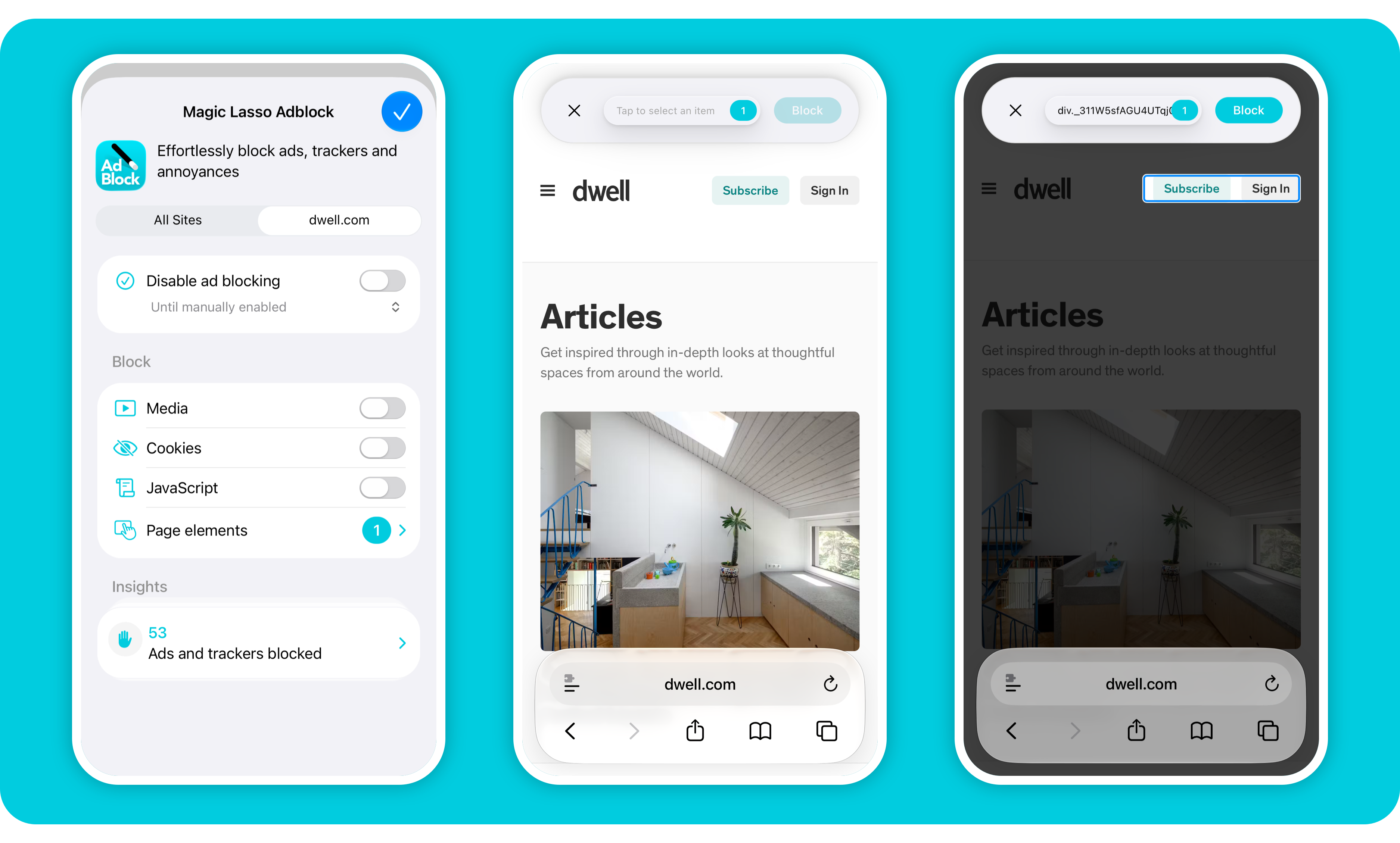
Open the Magic Lasso Adblock web extension, tap Page Elements, then tap an element on the page. Magic Lasso identifies the element and looks for similar elements elsewhere on the page – and across the site – so you can remove them all with a single rule.
For example, if an article contains distracting pull quotes, tap one of them and Tap to Block can identify similar pull quotes throughout the page and on future articles from the same site.
You can refine the selection using Expand or Contract in the CSS selector field, or use Hide to preview the page without the selected elements.
Once you’re happy with the selection, tap “Block” to permanently remove those elements.
For more precise control, advanced users can edit the generated CSS selector directly.
You can also remove existing page element rules. Tap the CSS selector field, select a Currently Blocked element, then tap “Allow”.
With Tap to Block, removing distracting page elements is now as simple as pointing at them: whether they’re pull quotes, call-outs, banners or other unwanted content.
Jump between your Configured Sites
The Current Site menu also makes it easy to access and edit your previously configured websites.
Tap the Current Site tab name to open a list of your Configured Sites. Select any site to quickly view or edit its settings.
You can also use this menu to control whether settings apply to an entire domain or only a specific subdomain.
By default, settings apply to the entire domain and all of its subdomains. For example, configuring apple.com will also apply the settings to developer.apple.com.
If you only want the settings to apply to a specific subdomain, select that subdomain instead — for example, developer.apple.com.
View Insights to see the difference ad blocking makes
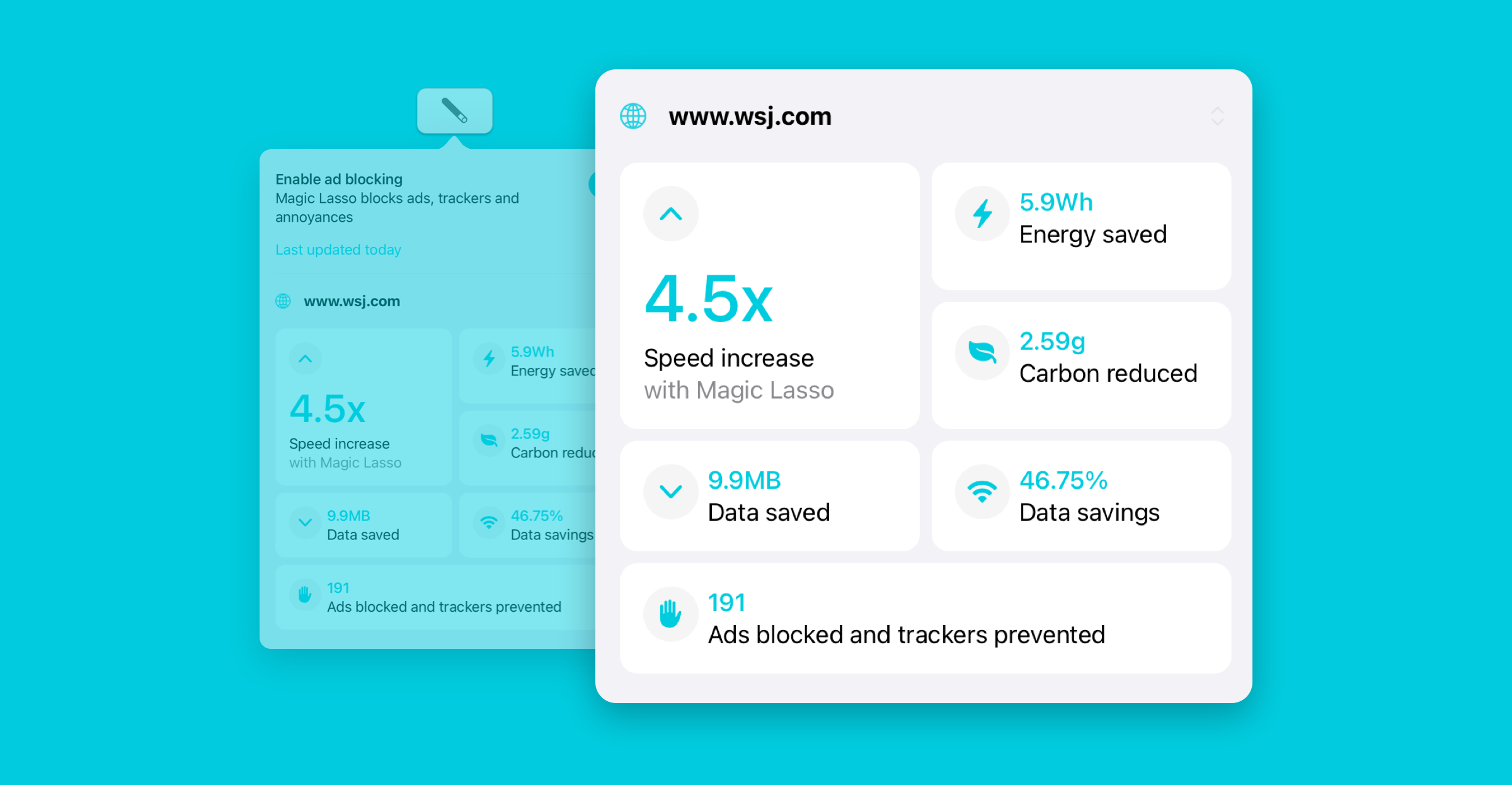
Performance Insights in Magic Lasso shows how ad blocking can affect the speed, data usage and energy efficiency of the websites you visit.
Rather than simply showing how many ads and trackers were blocked, Insights provides a broader view of the difference ad blocking can make, including:
- Page loading speed improvements
- Data savings
- Energy savings
- Carbon emissions avoided
Whenever you open the Magic Lasso Adblock web extension, a summary of the Current Site’s Insights appears at the bottom of the tab, including the number of ads and trackers blocked.
Tap the summary to see the full Insights view, including the average page loading speed increase and estimated data, energy and carbon savings.
Create Custom Rules for App Ad Blocking
The Magic Lasso app continues to provide advanced control through Custom Rules, including support for customizing App Ad Blocking.
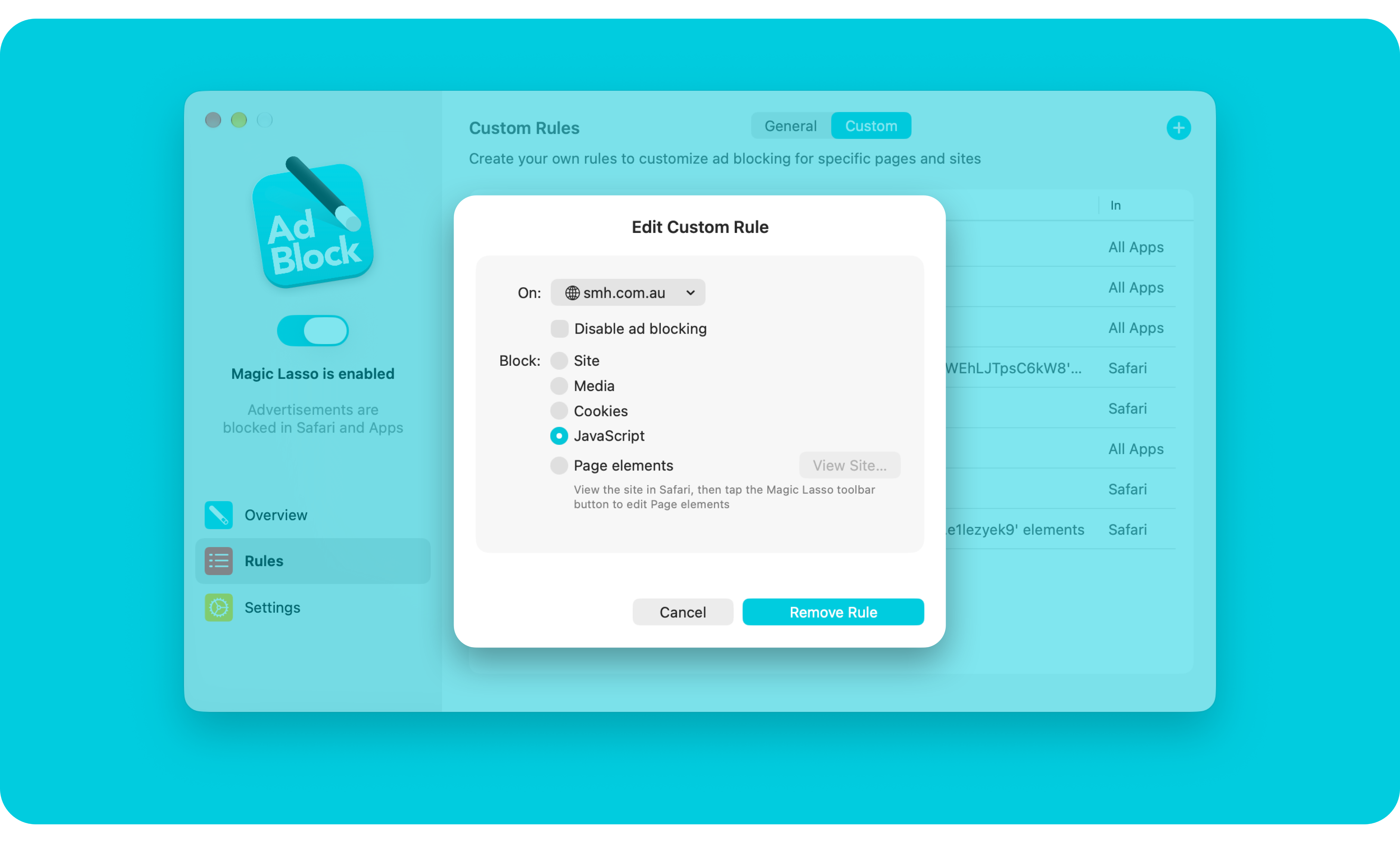
In the Magic Lasso app, go to Rules > Custom to view and manage all of your custom rules.
To create a Custom Rule for App Ad Blocking, tap + and then tap “Show Recents…” in the On field. This shows recently blocked or allowed hosts, making it easier to identify what you want to change and customise how Magic Lasso behaves when blocking ads in apps.
Together, the new web extension controls and Custom Rules give you simple, accessible controls for everyday browsing, while retaining deeper control for when you want to customise ad blocking further.
More control, right where you need it
Magic Lasso Adblock v5.6 makes it easier than ever to customise ad blocking, whether you’re fine-tuning a single website, removing distracting page elements or managing how ads are blocked across sites.
With the new Safari web extension and existing Custom Rules, Magic Lasso puts you in control of a cleaner, faster and more personalised browsing experience — all while keeping your data private and secure.