



Ads are everywhere on your iPhone, but the good news is there are several effective ways to remove, stop and block iPhone ads.
From Safari content blockers and web extensions to DNS filtering and VPNs, each ad blocking approach has its pros and cons. This comprehensive guide explains how each method works, where it may block ads, and the trade-offs to consider: helping you choose the right solution for your needs.
Or, if you’re just looking for the simplest way to block ads on your iPhone – jump straight to our recommended approach – to easily block and remove the most ads possible.
On this page
- Why Block iPhone Ads?
-
How to Block Ads on your iPhone – 3 Main Techniques
- Our Recommendation: The Easiest Way to Block Ads on iPhone
Why Block iPhone Ads?
Blocking ads on your iPhone has several significant benefits:
-
Increased Privacy – By stopping ads, you reduce the amount of personal data that advertisers can collect, making it harder for companies to build detailed profiles of you.
-
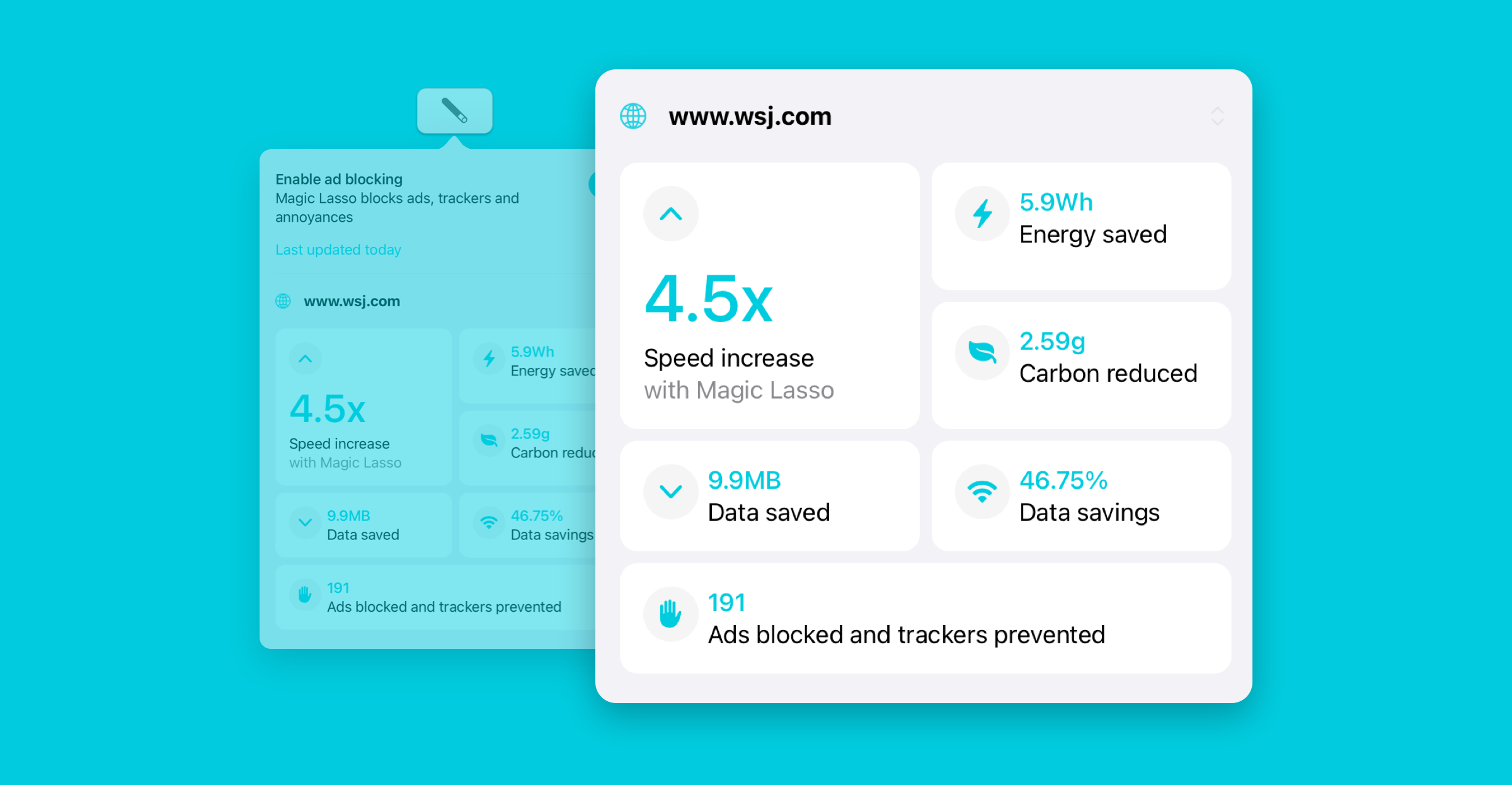
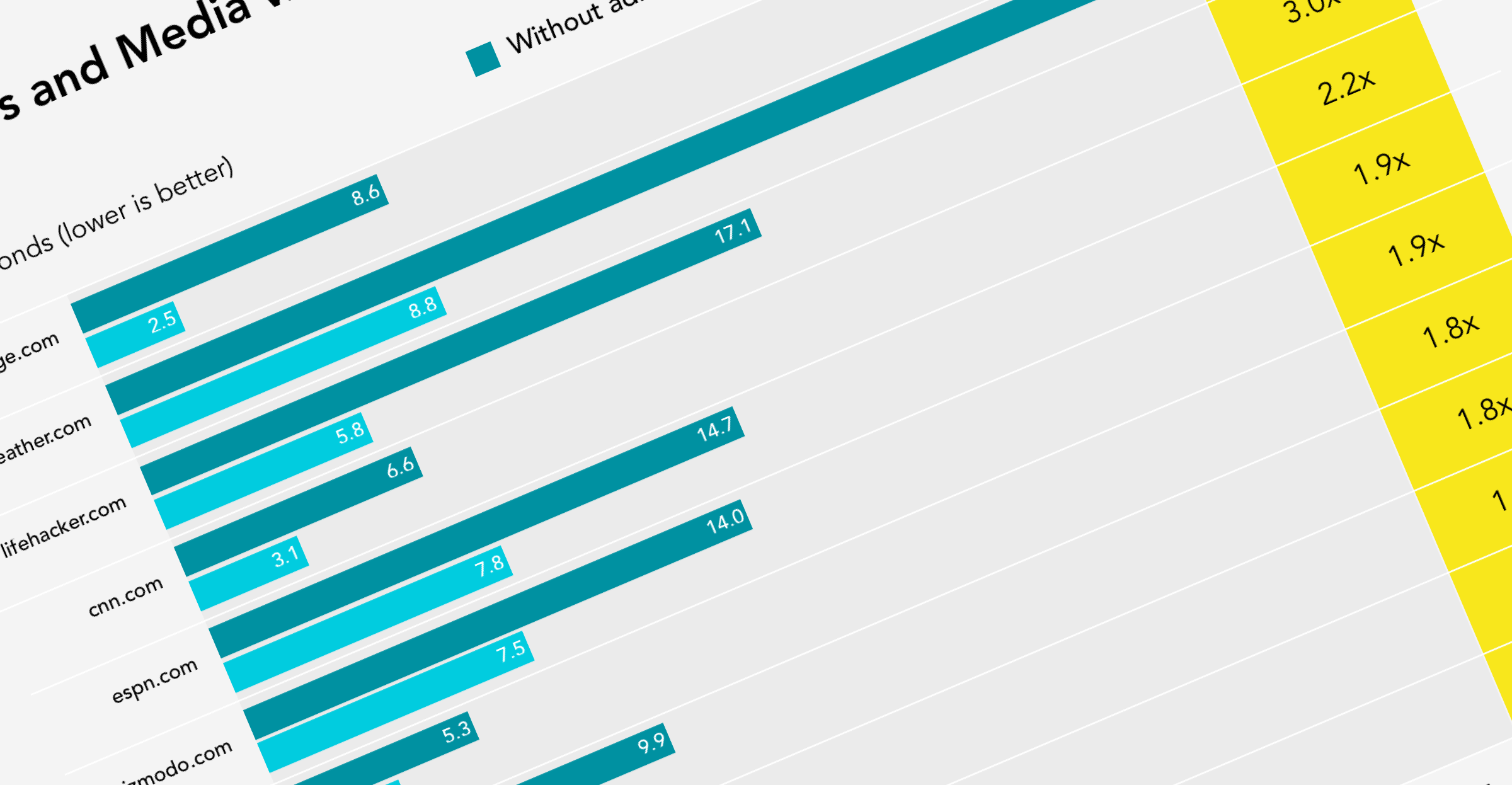
Improved Speed – Removing ads reduces the number of resources used to load a web page, which results in a faster, smoother experience.
-
Less Annoyances – Stopping ads eliminates intrusive pop-ups and un-skippable video ad distractions, allowing you to enjoy your content without constant interruptions.
-
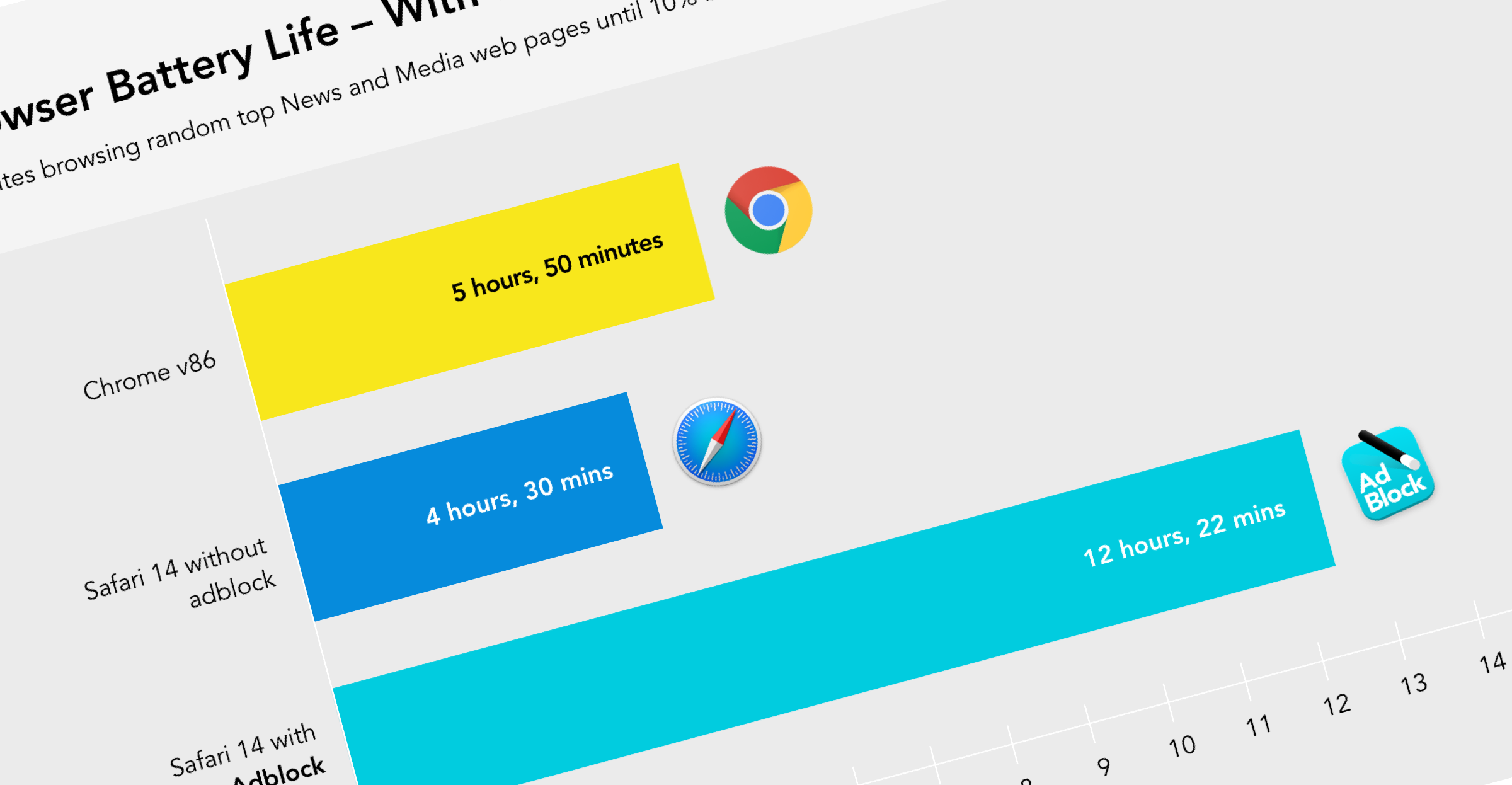
Better Battery Life – When you block ads, you also extend your device’s battery life, removing battery draining ad network resources and trackers.
-
Reduced Energy Use – Blocking ads reduces data and server resources, that use significant energy, contributing to a more sustainable online experience.
Read on to understand three common ways to block iPhone ads, or jump straight to our recommended approach: which is the easiest way to get all these benefits on your iPhone.
1. How to Block iPhone Ads using a Browser Extension
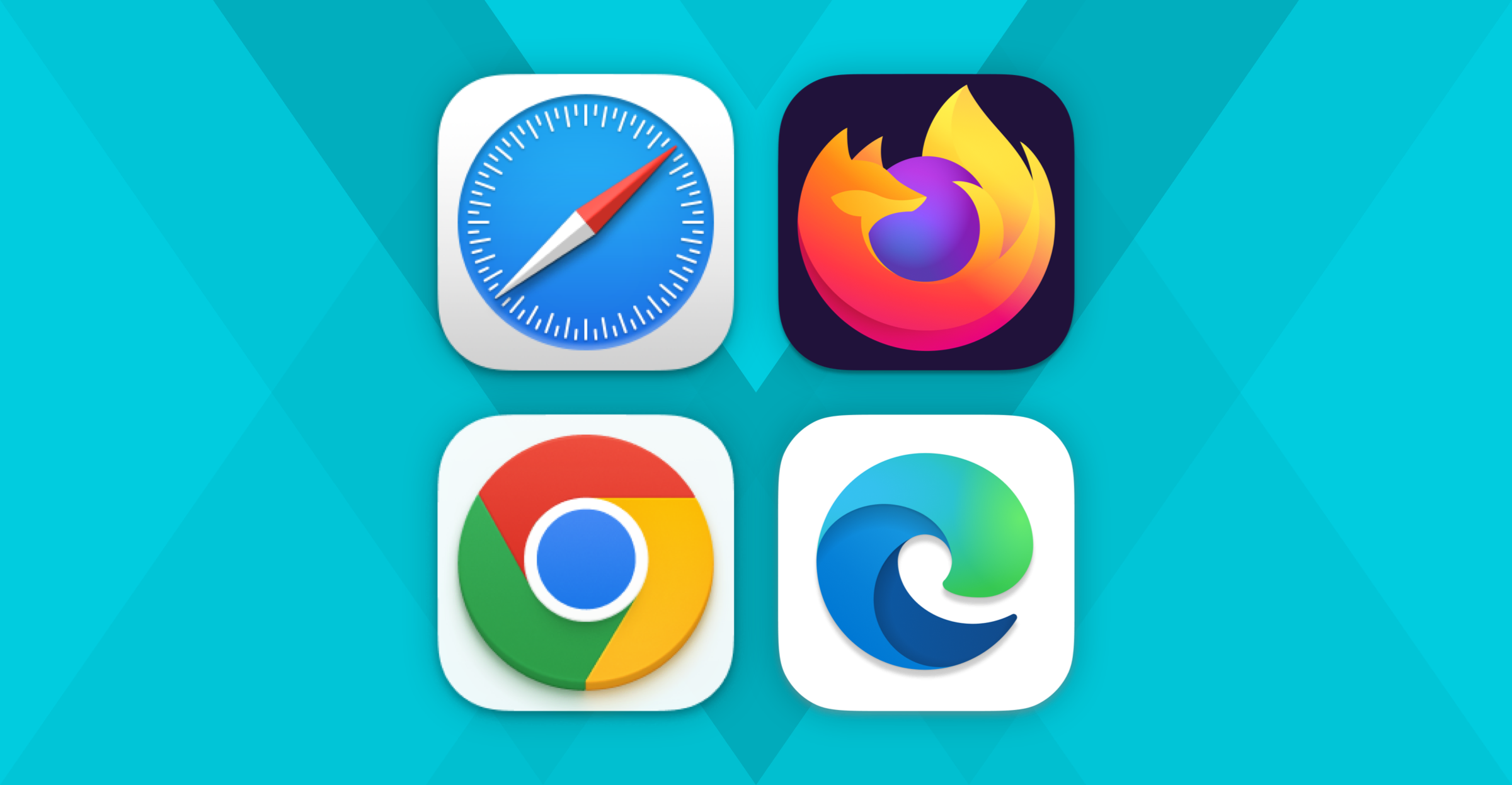
Web browser extensions are one of the most popular and effective ways to block ads on your iPhone. However, on the iPhone, these extensions are only available for Safari and do not work in Chrome or Firefox.
Browser extensions can block pop-ups, banners, and other types of ads that appear while browsing. However, they don’t block ads in other apps.
Some well-known browser-based ad blockers include Magic Lasso Adblock, AdBlock Plus, and uBlock Origin.
Since browser add-ons are integrated tightly with the Safari web browser, this technique to block web ads is generally very effective. With a good browser-based ad blocker, you should be able to block almost all ads, trackers, and annoyances you encounter on the web.
However, not all web browser add-ons are as effective at blocking video ads, and most don’t effectively block YouTube video ads.
To effectively block YouTube video ads, advanced techniques and ongoing updates are necessary to stay ahead of YouTube’s constant changes. For more details on these issues, see our best YouTube ad blocker article.
Since web extensions may have access to the pages you visit and your browsing history, it’s crucial to choose an ad blocker with a privacy policy that guarantees no tracking, collecting, or harvesting of your browsing history.
Pros
- Effectively blocks all trackers, ads, and annoyances on web pages
- Many good ad blocker options available
- Generally easy to setup and install
Cons
- Only blocks ads on web pages, not in other apps
- On the iPhone, they are only available for Safari
- Depending upon ad blocker used, it may not block video ads
- May have access to your browsing history, so choose a privacy-respecting option
2. How to Block iPhone Ads using a VPN
VPNs and network filters work by filtering internet traffic to and from your iPhone, potentially preventing ads from being loaded in the first place.
These filters can be configured directly on your iPhone or through your Wi-Fi router, which may provide ad-blocking across multiple devices on your network. Some paid Virtual Private Network (VPN) services also offer ad blocking features as part of their feature set.
As VPNs and network filters work at a lower level than web browser extensions, they can also block ads and trackers across all the apps on your device, not just within web pages. While VPNs offer lower-level access, this comes at a cost: the ad blocking is less granular.
This means that while many ads in apps will be blocked, not all will. Therefore, using a VPN or network filter to block ads will reduce the number of ads you see, but not completely remove them.
So, VPNs may block common banner ads on your iPhone, but they are not as effective at stopping other annoyances such as pop-ups, video ads, or YouTube ads. VPNs are also less effective than browser extensions at blocking ads, trackers, and annoyances within Safari.
Some network-level ad blocking may also be overzealous, blocking lots of acceptable network requests, not just ad requests, causing apps on your iPhone to stop working.
From a privacy perspective, VPNs require your internet traffic to be routed through their third-party service, potentially providing the VPN with access to all of your internet traffic. A VPN provider can see all the addresses you visit, so you need to trust that they are not recording or profiling your activity.
The best way to mitigate this potential privacy issue is to use a local network filter, such as the App Ad Blocking feature available in Magic Lasso Adblock.
App Ad Blocking provides the benefits of a VPN-based ad blocker while delivering fully on-device ad blocking that blocks ads without data leaving your iPhone – ensuring the highest levels of privacy.
Pros
- Blocks many ads and trackers on your iPhone
- Works across all your apps, not just in Safari
- Local network filter options available, providing better privacy than a third-party VPN
Cons
- Not as effective as a web browser extension at blocking Safari web ads
- May not block all ads and trackers
- Potentially overzealous network blocking may break some apps
- VPNs have access to all your internet traffic, so choose a privacy-respecting or on-device processing option
3. How to Block Ads on an iPhone using a DNS Service
DNS (Domain Name System) services, such as NextDNS, can block ads by redirecting requests away from known ad-serving domains.
Like VPNs and Network filters, this method can block ads in all your apps, though the effectiveness may be limited. You can set up these DNS services on your iPhone or holistically on your router.
Instead of routing all of your traffic through a VPN or Network filter, a DNS based ad blocker routes just your domain name look-ups through their service. So it provides the same effectiveness, and potential issues, as using a VPN to block ads.
When using a third-party DNS service you also need to be able to trust that they will not record or profile the DNS addresses you access, as these are all visible to the service.
Like network filters, DNS services are also less effective than browser extensions at blocking ads, trackers and annoyances within Safari.
Pros
- Blocks many ads and trackers on your iPhone
- Works across all your apps, not just in Safari
Cons
- Can be difficult to setup and configure
- Not as effective as a web browser extension at blocking web ads in Safari
- May not block all ads and trackers
- Potentially overzealous network blocking that may break some apps
- Has access to all your domain look-ups, so choose a privacy-respecting or on-device processing option
Our Recommendation: The Easiest Way to Block Ads on iPhone
Blocking ads is one of the best ways to improve your iPhone, making it faster, more private and less distracting.
There are many ways to block iPhone ads, including Safari extensions, DNS filters, VPNs and network filtering tools. While combining several solutions from different developers may seem like the best way to maximise coverage, it can quickly become complicated. If a website or app stops working because something has been blocked, it can be difficult to identify which app or service is responsible.
For that reason, we recommend using a single, comprehensive ad blocker from a single developer.
A unified solution is easier to set up, simpler to manage and far easier to configure if you ever need to adjust your ad blocking.
That’s why Magic Lasso Adblock is our recommendation as the best way to block ads on your iPhone.
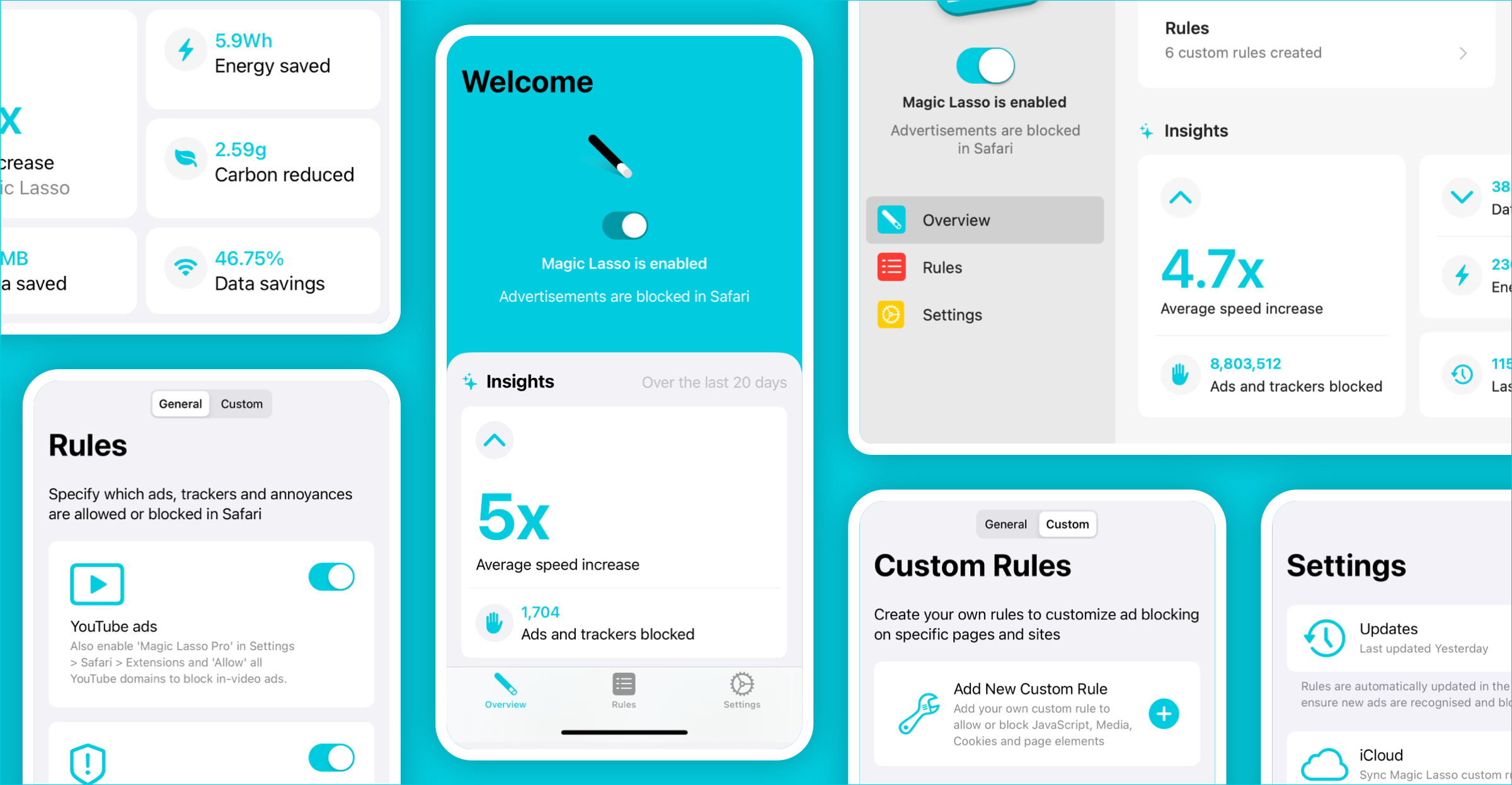
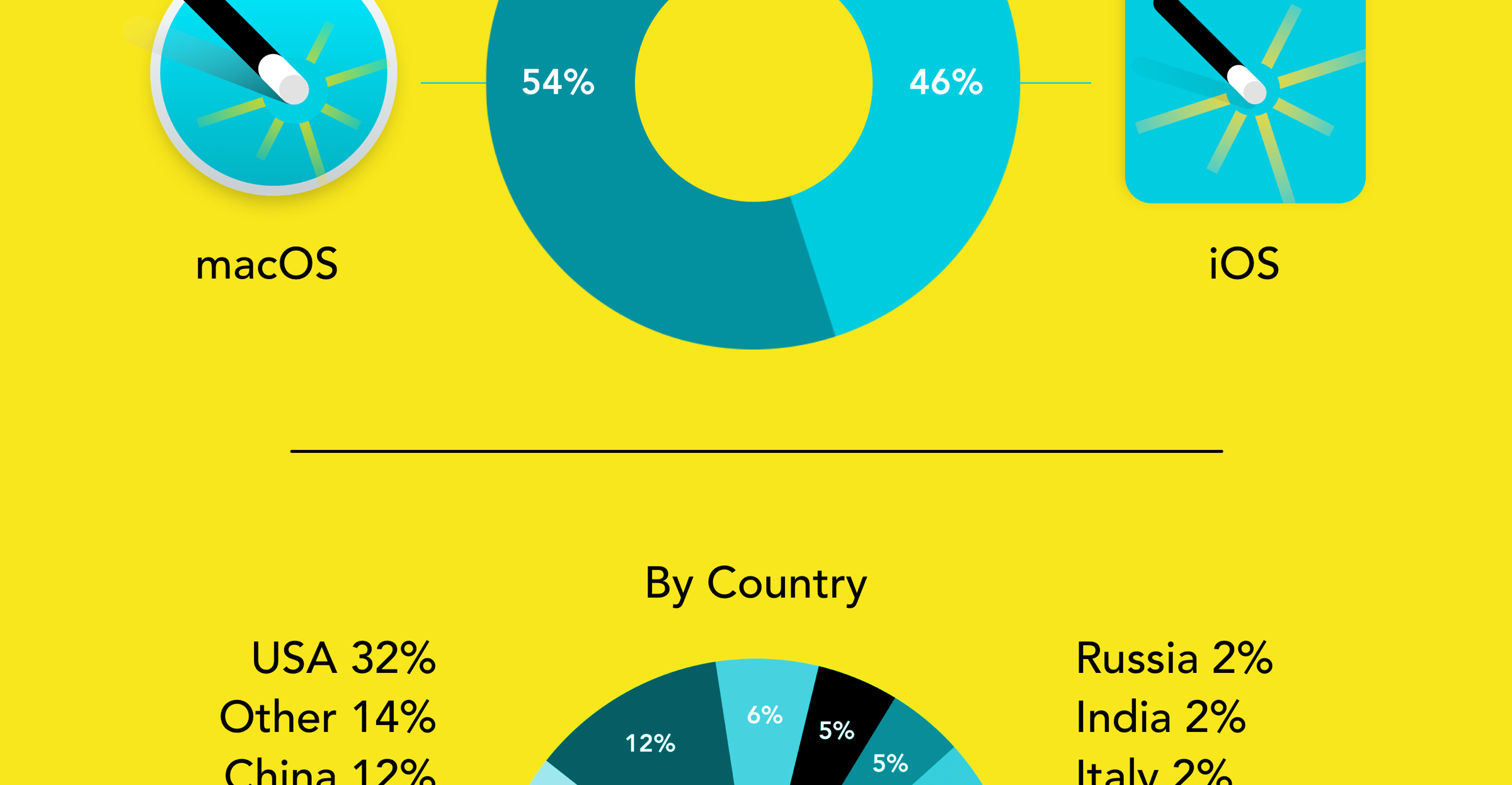
Magic Lasso combines a best-in-class Safari ad blocker with privacy-respecting App Ad Blocking to remove ads in many apps, all from one easy-to-use app. It also works seamlessly across the Apple ecosystem, with versions available for iPhone, iPad, Mac and even Apple TV.
With one reliable app, you can block ads across Safari and many other apps without juggling multiple tools from different developers.
Why wait? Start blocking ads today and enjoy a cleaner, faster, and more private iPhone by giving Magic Lasso Adblock a try.